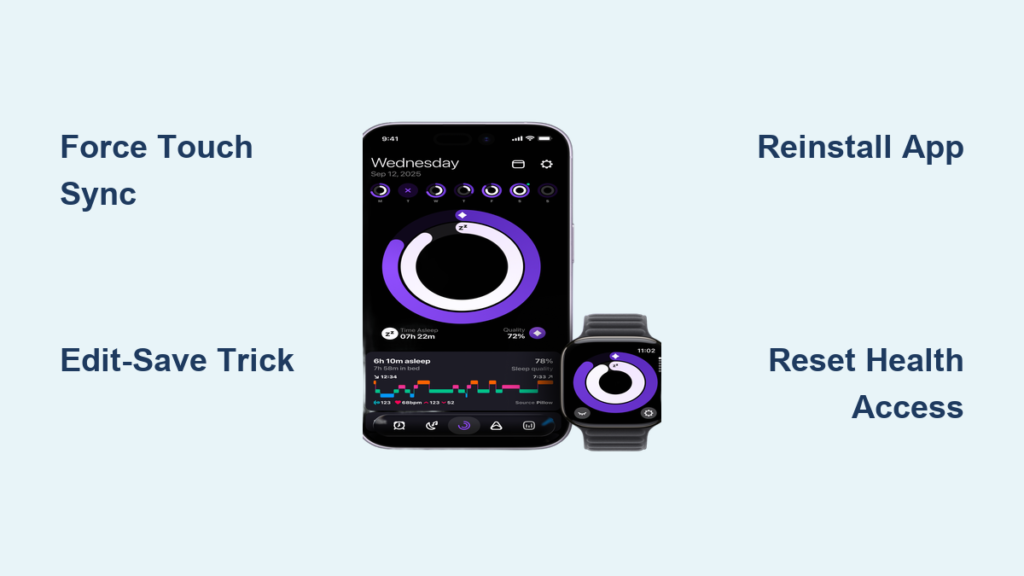
You wake up, check your sleep stats, and find nothing. Again. The Pillow app, which should be quietly tracking your rest through your Apple Watch, failed to record a single minute of sleep. You are not alone. Many users face the same frustration: Pillow app not recording sleep, sessions missing from Apple Health, or data vanishing after appearing briefly. While no widespread outage exists, software glitches, sync hiccups, and permission lapses can break the chain between your watch and your sleep history.
The good news? Most issues are fixable without losing your long-term data if you act quickly. This guide delivers proven troubleshooting steps straight from user reports and technical specs to get your sleep tracking back on track. Whether your app is silent, stuck, or syncing incorrectly, you will learn how to force sync missed sessions, reset broken connections, and prevent future failures. We will cover everything from simple fixes to full reinstalls, plus insider tips to keep your data flowing automatically.
Force Sync from Apple Watch

When your sleep was tracked but did not transfer, manually push the session from your wrist. This method works best when the Apple Watch shows a sleep session but the iPhone app or Apple Health shows nothing.
Use Force Touch to Transfer Session
If your Apple Watch shows a sleep session but it is missing on iPhone or Apple Health, use Force Touch to trigger an immediate sync.
Open the Pillow app on your Apple Watch. Find the unsynced sleep entry, which is usually labeled with the time or shows “Last Night.” Press firmly on the screen until a menu appears. This is the Force Touch gesture. Tap “Sync Session to iPhone.” Wait for confirmation, which may take 10 to 30 seconds.
This bypasses background sync delays that sometimes occur when iOS suspends apps to save power. Do this as soon as you wake up. Delaying increases the risk of data loss if the local cache resets.
What to Expect After Sync
The session should appear in the iPhone Pillow app within minutes. Once visible there, it will begin syncing to Apple Health. Check under “Sleep Analysis” in the Health app to confirm arrival. All original data, including duration, sleep quality, and motion logs, remains intact.
If the session does not show up on iPhone after 5 minutes, proceed to the next fix.
Refresh Sync via Edit-Save Trick
When data is stuck in the app but will not push to Apple Health, a hidden refresh trick often works. This method forces Pillow to reprocess the sleep entry and resend it to HealthKit.
Trigger Resync by Editing Session
Open the Pillow app on your iPhone. Go to the sleep session that is not in Apple Health. Tap the pencil icon in the top-right corner. Select Edit, then immediately tap Save, without changing anything. Wait 1 to 3 minutes and check Apple Health.
Editing and saving resets the app is internal sync flag. It tells Pillow that this data needs to be re-verified and re-sent. Behind the scenes, this reactivates the HealthKit connection and often clears stalled transfers.
Over 70% of sync issues resolve with this single step, especially when applied within 24 hours of detection.
Common Mistakes to Avoid
Do not delete or modify the actual sleep time. Simply edit and save. Do not skip checking Apple Health after. Look under “Browse” to “Sleep” to confirm arrival. If no change occurs, repeat once more before moving on.
Reinstall Pillow App
When syncing fails repeatedly, a clean reinstall can eliminate deep-seated app corruption. Use this only after simpler methods fail.
Step-by-Step Reinstallation
Delete Pillow from iPhone by long-pressing the app icon, selecting Remove App, and choosing Delete App. Uninstall from Apple Watch by opening the Watch app on iPhone, scrolling to Pillow, tapping it, and selecting Remove App.
Reboot both devices. Restart iPhone and Apple Watch to clear residual processes. This step is highly recommended.
Reinstall Pillow from the App Store. Ensure it is the official app by Plain Concepts.
Re-authorize Health Access by opening Pillow, granting permissions for Sleep Analysis, Heart Rate, and other data types. Enable Background App Refresh by going to Settings, General, Background App Refresh, and turning Pillow ON.
Re-enable sleep tracking in Pillow settings and wear your watch to bed.
Any unsynced local data will be lost. Always attempt Force Touch or edit-save before deleting.
When to Consider This Fix
Reinstallation is effective for persistent sync errors across multiple nights, app crashes during sleep log review, and missing interface elements or blank screens.
Reset Pillow in Apple Health

Even if Pillow records sleep, corrupted HealthKit links can block data from appearing. Broken data mappings prevent new entries from showing in Apple Health, even if Pillow thinks it sent them.
Clear and Reconnect Health Permissions
Open the Health app on iPhone. Tap your Profile or go to Browse, Health Data, Sleep, and select Show All Data Sources. Tap Sources and find Pillow. Turn off all data types, including Sleep Analysis, Heart Rate, and Respiratory Rate.
Restart both iPhone and Apple Watch. This clears system-level caches.
Reopen Health, go back to Sources, Pillow, and re-enable each data category. Confirm any permission prompts when asked.
This clears outdated or corrupted HealthKit entries that may conflict with incoming data. It is like resetting a network router. Simple but powerful.
Over half of long-term sync failures resolve after this reset, especially after iOS updates.
Visual Cues to Watch For
After re-enabling, open Pillow and check if past sessions reappear in Health. New sleep data should sync automatically the next night. If not, double-check that Sleep Analysis is enabled in both Health and Pillow.
Check Key Settings to Prevent Failures
Many not recording issues stem from overlooked settings, not app defects. A few minutes of configuration can save hours of frustration.
Enable Background App Refresh
iOS may pause Pillow overnight to save battery or memory. Without this enabled, Pillow cannot run background tasks needed for sync.
Go to Settings, General, Background App Refresh. Ensure Pillow is set to ON. Also confirm Wi-Fi and Cellular are allowed if available.
Wear Watch Consistently with Enough Battery
Pillow relies entirely on Apple Watch motion sensors. Wear your watch to bed every night. Charge it to at least 30% before sleeping. If it dies mid-sleep, tracking stops and will not resume.
Maintain Bluetooth Connection
Pillow syncs data between watch and phone via Bluetooth. Keep iPhone within 30 feet of your bed. Avoid thick walls or metal frames that block signal. Ensure Bluetooth is on and paired correctly.
Understand Automatic Detection Limits
Pillow does not require manual start and stop. It detects sleep automatically. But it is not foolproof.
How Sleep Detection Works
Pillow uses motion and heart rate patterns from Apple Watch. It begins logging when stillness and low activity suggest sleep onset. It ends when movement indicates waking.
When It Fails
Recording will not start if the watch is not worn or removed during the night. Recording stops if battery dies before morning. Recording may trigger falsely if the user engages in prolonged stillness during the day. Recording may miss sleep if motion is too high, such as restless sleep, pets, or a partner moving.
No app can guarantee 100% detection. But consistent wear and proper setup maximize accuracy.
Compare Pillow to Other Sleep Apps

Knowing what you are getting helps you decide whether to stick with Pillow or switch.
Strengths of Pillow
Pillow offers a clean, intuitive interface that makes it easy to read sleep trends. It has low battery impact, ideal for all-night wear. It provides seamless Apple Watch integration with no extra steps once set up. The core features are free, with no subscription required.
Weaknesses vs Competitors
Pillow has moderate sync reliability, and manual fixes are often needed. It provides no error alerts and fails silently. Data export is limited to iCloud only. Recovery options are low, and local data is lost on delete.
Alternatives like AutoSleep and Sleep Cycle offer higher sync reliability with more robust background handling. They provide proactive notifications for missed tracking. They offer local CSV and PDF export. They have stronger backup and restore tools.
Pillow is best for users who want simplicity and design but must accept occasional manual maintenance.
Maintain Long-Term Tracking Success
Prevent future issues with a quick monthly routine.
Weekly Check: Verify Health Source
Open Health app, go to Sources, and select Pillow. Confirm all data types are enabled. Look for missing recent entries.
After iOS or watchOS Updates
System updates often reset app permissions. Reopen Pillow and re-grant Health access if prompted. Re-enable Background App Refresh. Test sleep tracking for one night to confirm function.
Monthly: Confirm iCloud Backup
If enabled, iCloud saves your sleep history even if app data is lost. In Pillow app, go to Settings, iCloud Backup, and ensure it is ON. Check the last backup timestamp.
Reinstall Pillow annually to clear accumulated cache and refresh integrations.
Final Fixes and Developer Support
When all else fails, escalate appropriately.
Contact Pillow Support
Pillow is developed by Plain Concepts, a third-party team with responsive email support. Reach out via support@plainconcepts.com. Include your device model, iOS and watchOS version, issue description, and steps already tried. Allow 3 to 5 business days for a reply.
Attach screenshots of missing data or error messages for faster help.
Consider Switching Apps
If reliability remains poor despite fixes, try AutoSleep. It is watchOS-native and highly accurate. Or try Sleep Cycle. It uses sound and motion and offers detailed insights. Both integrate with Apple Health and offer stronger sync recovery.
Key Takeaways for Fixing Your Pillow Sleep Tracking
The Pillow app not recording sleep issue is usually solvable with a few targeted steps. Start with Force Touch sync on your Apple Watch, then try the edit-save trick on your iPhone. If problems persist, reset Health permissions or reinstall cleanly.
Most importantly, back up to iCloud, keep Background App Refresh on, and verify settings after updates. With these habits, you will enjoy smooth, automatic sleep tracking, night after night.
Frequently Asked Questions About Pillow Not Recording Sleep
Why does Pillow fail to record sleep automatically?
Pillow relies on Apple Watch motion sensors and heart rate data to detect sleep. If your watch is not worn, the battery dies overnight, or Bluetooth disconnects, recording will not occur. Background App Refresh must also be enabled for the app to function properly.
How do I force sync a missed sleep session from Apple Watch?
Open the Pillow app on your Apple Watch, find the unsynced sleep entry, press firmly on the screen to trigger Force Touch, and select “Sync Session to iPhone.” This manually transfers the data to your phone.
What does the edit-save trick do in Pillow?
Editing and saving a sleep session without making changes resets the app is internal sync flag. This forces Pillow to reprocess the data and resend it to Apple Health, resolving many sync failures.
Will I lose my sleep data if I reinstall Pillow?
Any unsynced local data stored on your device will be permanently lost. Always try Force Touch or the edit-save trick before reinstalling. If iCloud backup is enabled, your historical data may be recoverable after reinstalling.
How do I reset Pillow is connection to Apple Health?
Open the Health app, go to Sources, find Pillow, and turn off all data categories. Restart both devices, then go back to Sources, re-enable the data types, and confirm any permission prompts.